Testing the Swift C compatibility with Raylib
· 7 min read
Since Ladybird team abandoned their Swift adoption for the browser I heard a lot of criticism about the Swift ecosystem and the interaction between Swift and C/C++ projects.
My usage of Swift is mainly for command line tools, recreational programming (like Advent of Code 2023 and previous years) or Metal programming.
In my previous experiments I really enjoyed Swift, and actually preferred it to some other programming languages like Rust. However it seems that programmers have wrong opinions about this programming language, especially about its accessibility (no it is not only for Apple platforms) and its actual power wrapping C/C++ libraries.
Today, I will demonstrate how easy I built a very basic Raylib game using Swift, with no FFI, and for macOS and web (using WASI).
This article is for demonstration purposes, and is not a tutorial.
To this end I will not explain how to install Swift, the WASM SDK for Swift, etc.
However, if you are interested in reproducing this demonstration at home, you can find the finished project on my github and adapt for your own needs.
Swift <3 Raylib #
Unlike other languages, Swift does not require you to write manual FFI bindings or wrapper layers to interact with C code. FFIs are engineered to be completely invisible and automatic via the Clang importer (more about that later).
This means you can directly drop your C headers in your project, the static C library, and use the power of the Swift Package Manager to tell the compiler how the project needs to be compiled.
The code I want to run is very simple: initialize raylib, a window, and drawing a text.
This is the Swift code:
import CRaylib

let screenWidth: Int32 = 800
let screenHeight: Int32 = 600

#if os(WASI)
    InitWindow(screenWidth, screenHeight, "WASM C Raylib from Swift!")
#else
    InitWindow(screenWidth, screenHeight, "Raw C Raylib from Swift!")
#endif
SetTargetFPS(60)

let rayWhite = Color(r: 245, g: 245, b: 245, a: 255)
let darkGray = Color(r: 80, g: 80, b: 80, a: 255)

while !WindowShouldClose() {

    BeginDrawing()

    ClearBackground(rayWhite)
    DrawText("It's alive... ALIVE!", 300, 300, 20, darkGray)

    EndDrawing()
}

CloseWindow()
The project structure #
Generally a Swift project is constituted like this:
Package.swift
Sources/
    ProjectName/
        code.swift
All code in Sources will be used by the Swift Package Manager to compile my project.
In my case I want to differentiate what comes from the Raylib C project and my own code.
So, my Swift project ends up like this:
Package.swift
Sources/
    CRaylib/
        macOS/
            libraylib.a
        WASM/
            libraylib.a
        raylib.h
    MyGame/
        main.swift
Everything in Sources/CRaylib is related to raylib itself: header files, static libraries (based on platforms, here macOS and WASM), etc.
And everything in Sources/MyGame is my code, that will use the raylib C code.
I actually prefer downloading and replacing directly the files in my project, instead of letting a script, the package manager, or even the end-user, download them automatically.
This approach comes directly comes from my experience in game engine development: never trust that the library will be available online in one minute, and never trust that the next version will not end up breaking your project or your dependencies.
This is actually an “anti-web” way to see things, but it actually saved my (dev-)life more than one time.
The Package.swift file #
But how to build that project (let’s call it “MyGame”) now?
Let’s dig into the Package.swift file at the root of the project:
// swift-tools-version: 6.2
import PackageDescription

let package = Package(
    name: "MyGame",
    targets: [
        .target(
            name: "raylib",
            path: "Sources/CRaylib",
            publicHeadersPath: ".",
            linkerSettings: [
                // macOS
                .unsafeFlags(["-L", "Sources/CRaylib/macOS"], .when(platforms: [.macOS])),
                .linkedFramework("OpenGL", .when(platforms: [.macOS])),
                .linkedFramework("Cocoa", .when(platforms: [.macOS])),
                .linkedFramework("IOKit", .when(platforms: [.macOS])),
                .linkedFramework("CoreVideo", .when(platforms: [.macOS])),

                // WASM only
                .unsafeFlags(["-L", "Sources/CRaylib/WASM"], .when(platforms: [.wasi])),
            ]
        ),
        .executableTarget(
            name: "MyGame",
            dependencies: ["raylib"]
        ),
    ]
)
The interesting part of this demonstration is in how I defined the targets.
This target is actually a Clang target, which specifies how the target is named, where is the source code, the header, and which libraries the linker needs to interact with for the linking step.
In this case, I have a target named raylib with the source code in a relative path (Sources/CRaylib) and different libraries depending on the OS (macOS or WASM).
Very easy!
Let’s run it #
If I try to run my project, I have an issue:
> swift run
warning: 'craylib': ignoring declared target(s) 'craylib, MyGame' in the system package
warning: 'craylib': system packages are deprecated; use system library targets instead
error: no executable product available
Hum, what is going wrong here?
Swift natively has no idea what a header (or .h) file is. As in, you cannot write import raylib.h in a Swift file directly.
To solve this, Apple built the Clang Importer into the Swift compiler. When the Swift compiler compiles Swift code, Swift silently boots up Clang, that parses the C headers, translates them into a format Swift can understand, organizes code into modules, and hands them back to Swift through.
However I actually had to help the compiler making the bridge between this Clang module and Swift, using a module.modulemap file in my CRaylib project:
module CRaylib [system] {
    header "raylib.h"
    link "raylib"
    export *
}
Here, the module.modulemap can be explained like that:
module CRaylib [system]: “Create a brand new Swift module named CRaylib and treat it as a system library…”,header "raylib.h": “Here is the exact file you need to parse to find the C functions and structs…”link "raylib": “Whenever a Swift file imports this module, automatically tell the linker to look for a compiled library named libraylib.a…”export *: “Take every single C function you find and make it publicly available to my Swift project”
Our final project structure is like this:
Package.swift
Sources/
    CRaylib/
        macOS/
            libraylib.a
        WASM/
            libraylib.a
        raylib.h
        module.modulemap
    MyGame/
        main.swift
Now, if I try to run it… I have a window! Yeah!
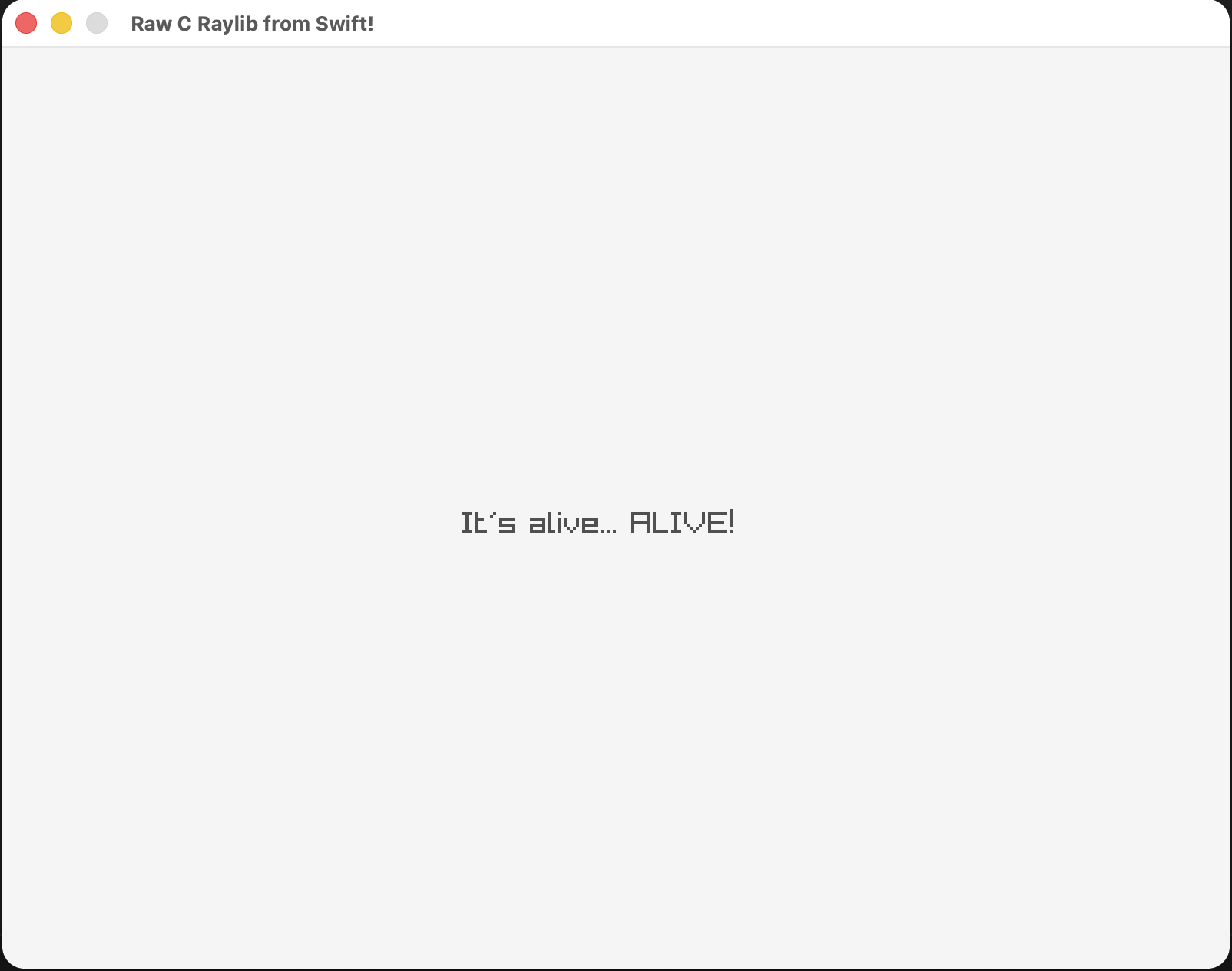
Ok, let’s summarize what I did previously:
- Downloading and copy-pasting raylib header and static libraries to my project: EASY,
- Write a
Package.swiftfile in order to declare my project and its dependencies: EASY, - Write a
module.modulemapfile to make the transition between raylib C files and my Swift project: EASY.
EASY + EASY + EASY = EASY.
Swift <3 WASM #
Ok, now that I have a native build… why not building it for WASM?
The Swift community made a ton of improvements the last years to build WASM applications using Swift.
If you are interested with it I would advise you to take a look at the official documentation.
Building the project for WASM was a bit more complicated, maybe because I miss some documentation to build this kind of project using the WASM SDK for Swift.
As shown here I did link the WASM project with the correct static library, in the correct path.
And I do not have any modification to make in the module.modulemap file for raylib WASM. Nice.
All the following is just how to build the final WASM project:
> swift build --swift-sdk swift-6.2.4-RELEASE_wasm # i am using Swift 6.2.4 and Swift SDK for WASM has been installed
As I build for browser I have a linking error, but my object file has been built using Swift WASM compiler.
Because Swift’s stdlib was built for a headless server (WASI), it expects a terminal.
I needed to write a tiny C stub to intercept those terminal requests (errno, __wasi_args_sizes_get and __wasi_args_get) so the browser’s WebGL environment (Emscripten) doesn’t panic:
// wasi_stubs.c
#include <stdint.h>

int errno = 0;

int32_t __wasi_args_sizes_get(int32_t *argc, int32_t *argv_buf_size) {
  *argc = 0;
  *argv_buf_size = 0;
  return 0;
}

int32_t __wasi_args_get(int32_t *argv, int32_t *argv_buf) { return 0; }
and finally to compile the project using emcc:
emcc .build/wasm32-unknown-wasip1/debug/MyGame.build/main.swift.o ./wasi_stubs.o \
    Sources/CRaylib/WASM/libraylib.a \
    -L</PATH/TO/YOUR/SWIFT_SDK>/usr/lib/swift_static/wasi \
    -lswiftCore \
    -s USE_GLFW=3 \
    -s ASYNCIFY \
    -o index.html
Important note
Browsers cannot handle infinite while loops without freezing.
In order to avoid rewriting my infinite loop function in main.swift I used the magic Emscripten flag ASYNCIFY to pause the Swift code and let the browser actually draw the frame.
Once I have my web files generated (index.html, index.js and index.wasm) I can spawn a tiny web server, and go to http://localhost:8080 to see…
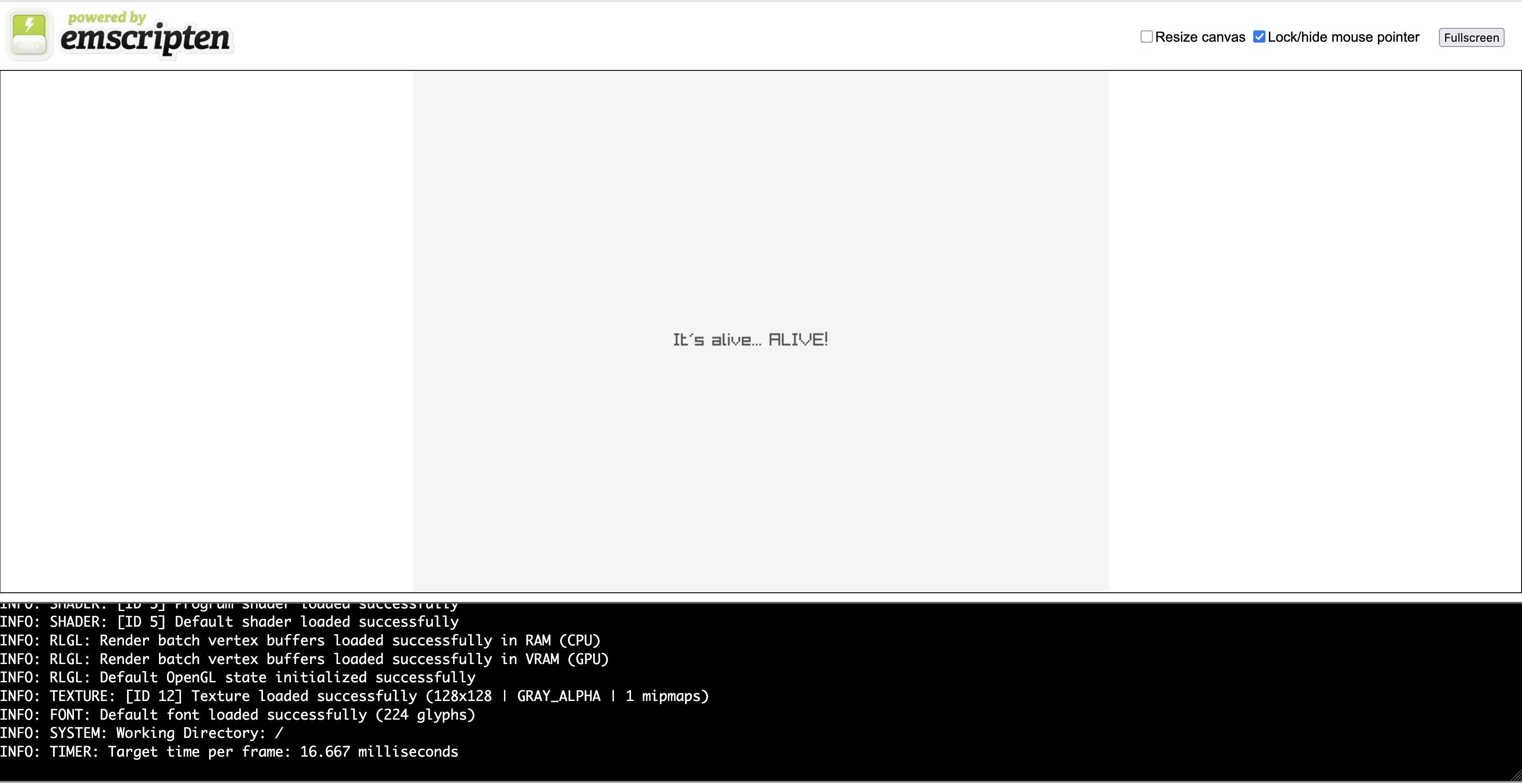
The hardest thing was using emcc to build our final WASM binary.
I did not even need to modify our source code or our project!
Mission completed!
Conclusion #
Wrapping C for Swift was pretty straightforward, and I successfully spawned a window and draw some text using raylib. The usage of the Swift Package Manager is useful, and I did not need to dig so much into compiler issues, or build wrappers by hand, to actually interact with the C code of raylib.
So, if you want to build games using raylib, why not learn learning or use Swift for that?